
New hires shouldn't have to guess.
Give each role a plan: what to read and what to do first, and by when. Send it once. New hires see it on their Home, and you see who's done and what's overdue.
Part of the Office plan.
Step 1
A plan for every role
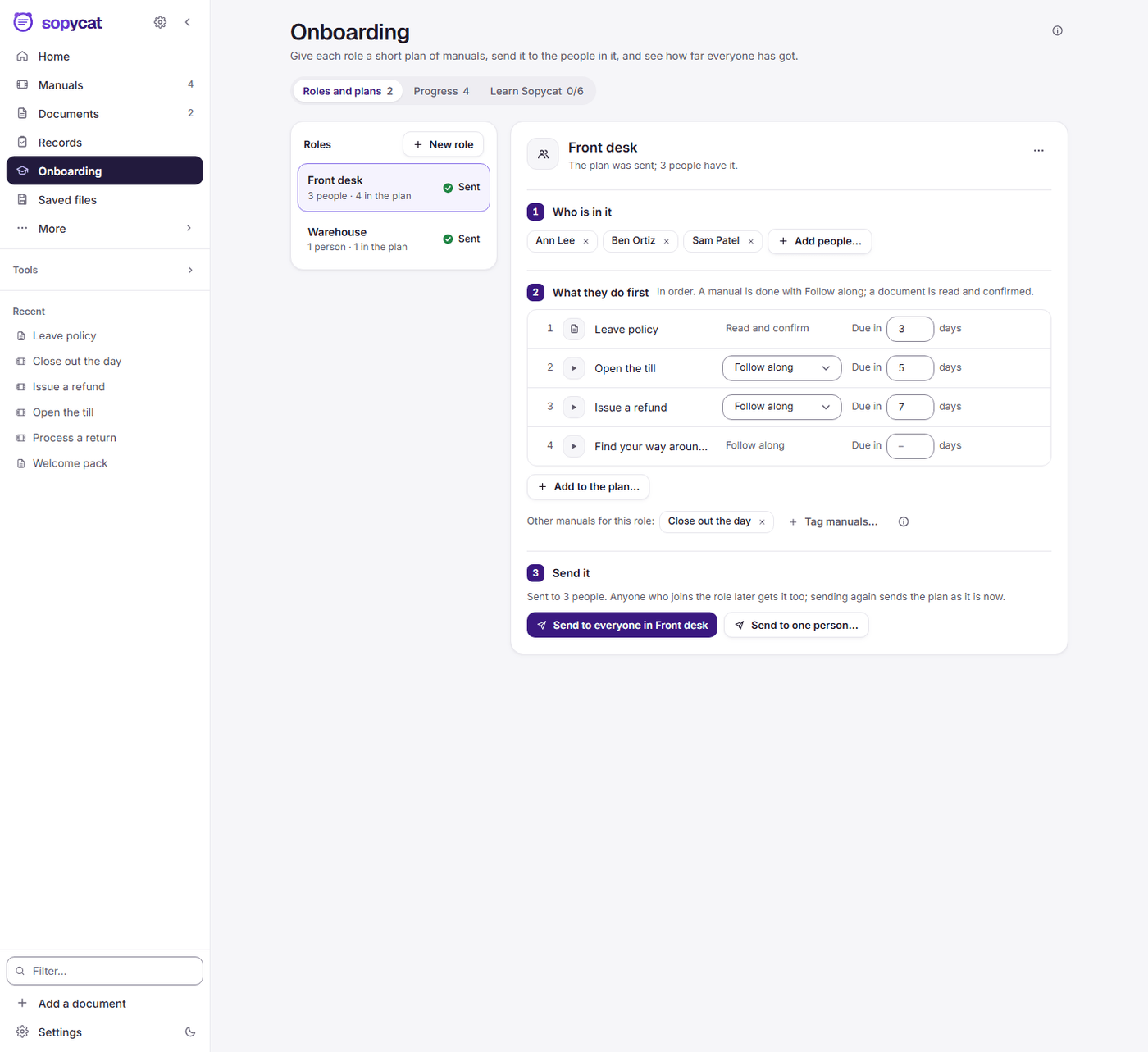
A role is a job in your team, such as Front desk or Delivery drivers. Its plan is what someone new reads and does first, in order.
- Make the role, put the people in it, and line up its manuals and documents.
- A document is read and confirmed. A manual is done step by step with Follow along.
- Give each item a due date: Due in 3 days from the day it is sent.
- Send it once. Anyone added to the role later gets the plan too.
- Or send one manual on its own, from its menu: Send to read or do, to a person or a whole role.
Step 2
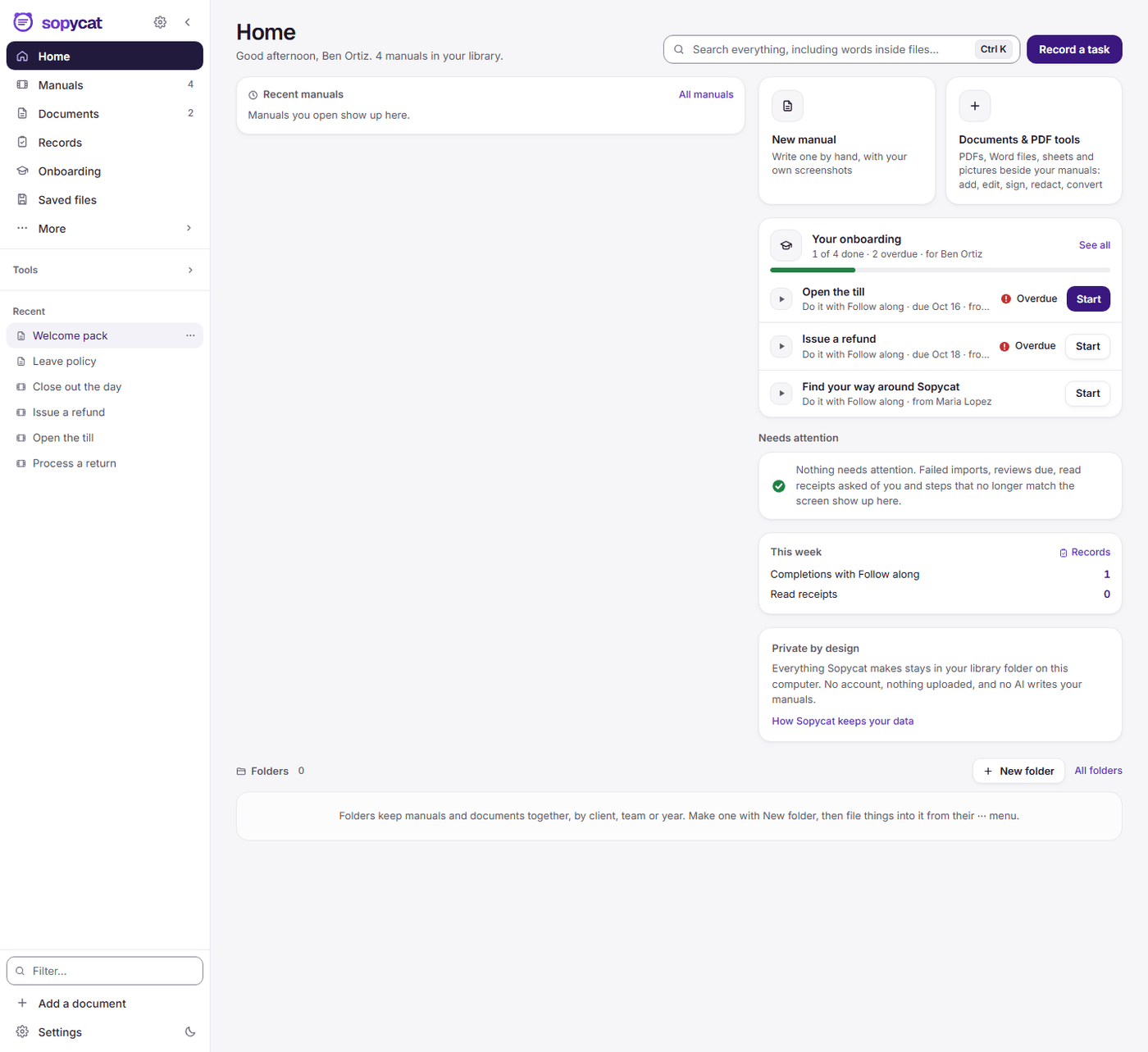
It lands on their Home
The new hire opens Sopycat and their plan is waiting, with what is overdue first.
- One Windows notification tells them when something arrives.
- One click says they've read a document: I have read this.
- A manual starts Follow along from the same card.
- Their Onboarding page lists everything sent to them, all in one place.
Step 3
They learn by doing the real task
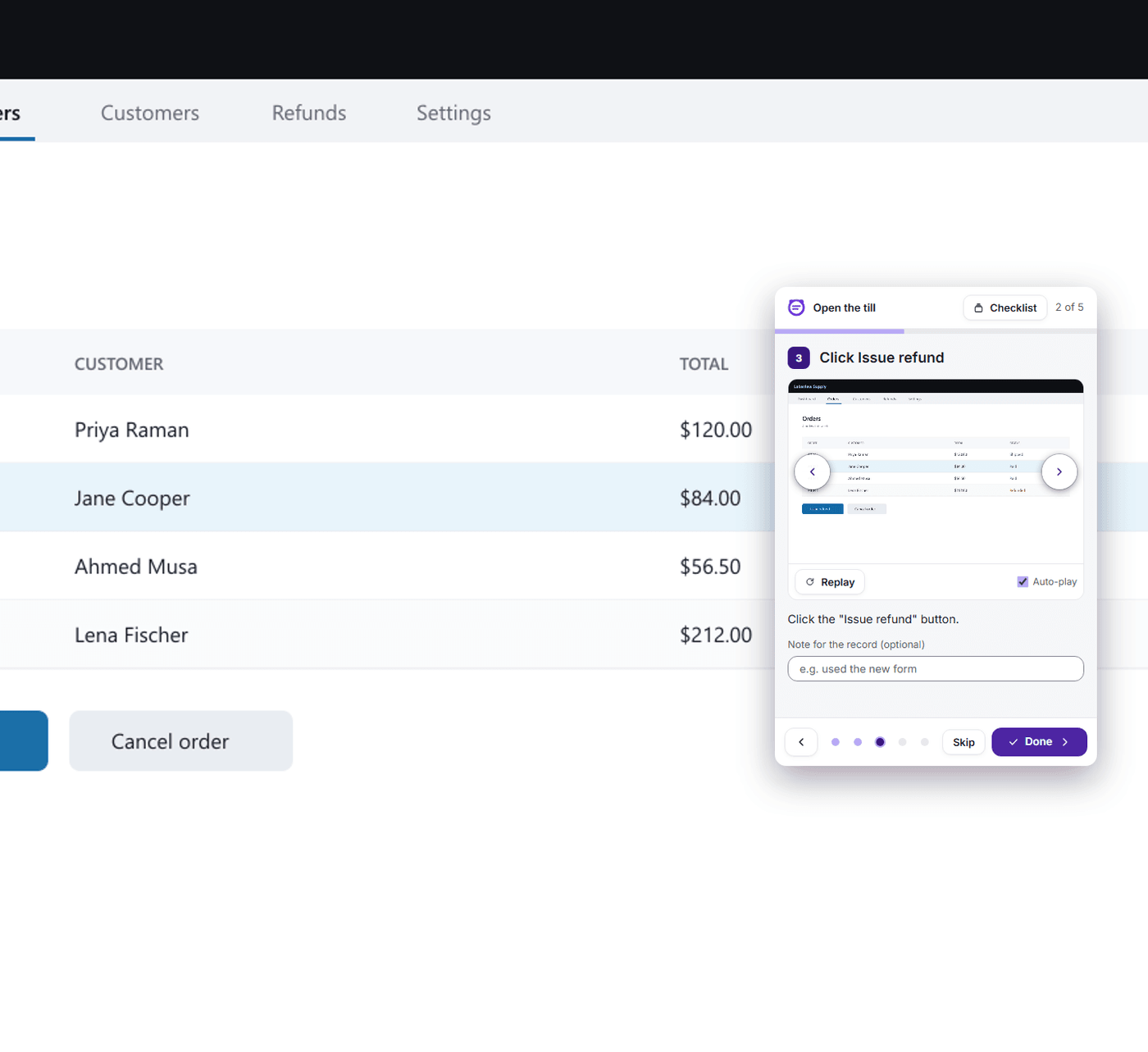
Follow along opens a small window that stays on top of the program they are learning, one step at a time, with the picture and the clip of each step.
- They do the task for real while the step stays in view, and press Done as they go.
- Replay a step's clip, skip one, or open the whole procedure as a checklist.
- Add a note for the record, such as “used the new form”.
- Each finished run is kept in Records, with who did it and when.
Step 4
See who's done and what's overdue
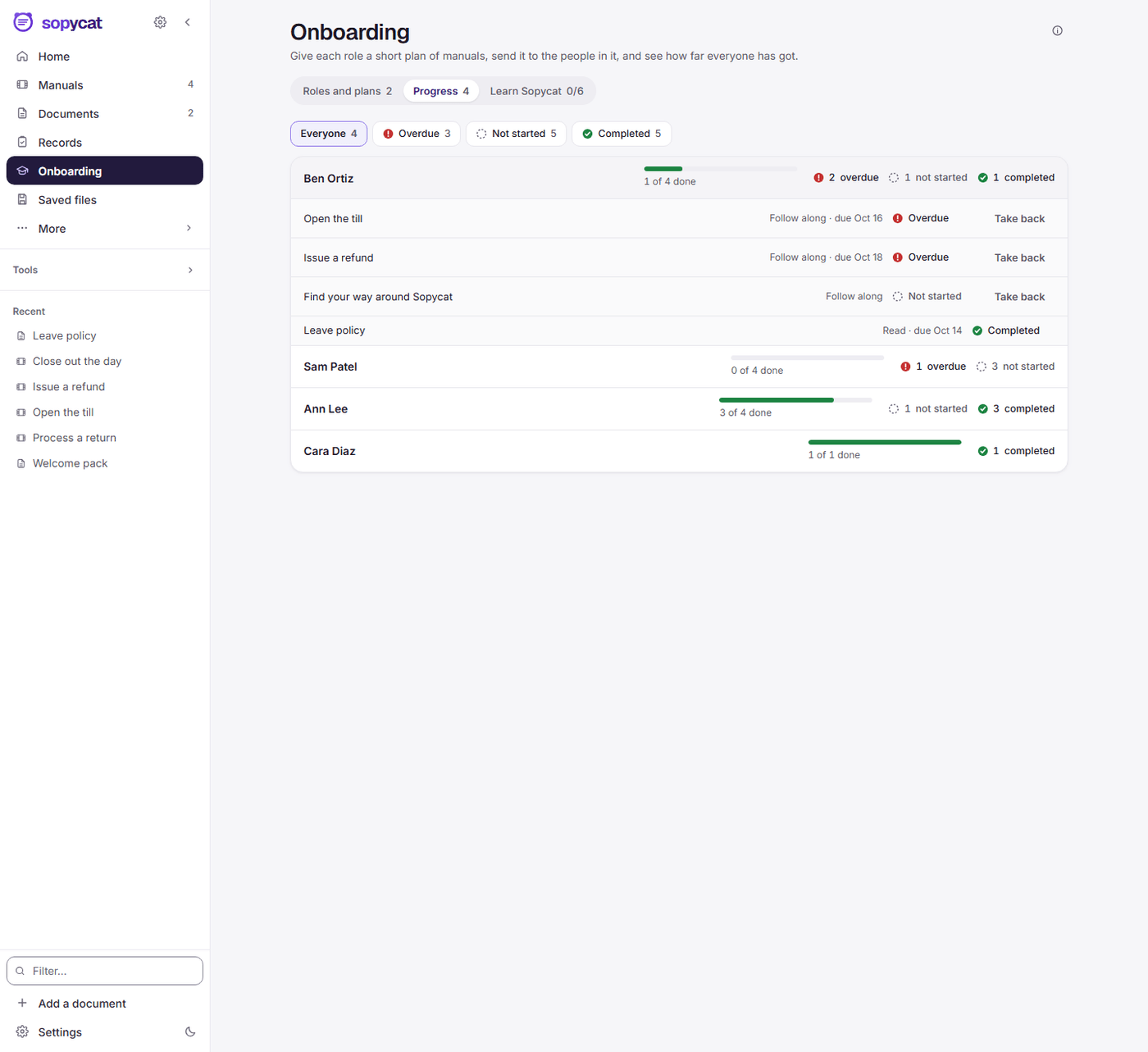
Everyone's progress is in one place, so you can follow up with the right person.
- Progress shows how far each person has got, and narrows to Overdue or Not started in one click.
- Records groups every run and read confirmation into Completed, Incomplete, Not started and Overdue, and saves it as a spreadsheet.
- Sent something by mistake? Take back. Records keeps what was already done.
Built for a small office, not an IT department
No accounts to set up and nothing to host. Onboarding works through the library folder your team already shares.
Tutorials for the app itself
Learn Sopycat has six short tutorials, done with Follow along, so a new hire learns the app the way they will learn your work.
Through your own shared folder
Put the library on OneDrive, Dropbox, Google Drive or a network drive. Everyone who opens it sees the same roles, plans and progress.
Nothing uploaded
Plans, names and records stay in your library folder, on your computers. No AI writes your manuals.
One key for the office
The Office plan is one key for the whole office, with a seat for each person. Onboarding, reading confirmations and training records come with it.
How it works, step by step: Onboarding in the help.
Give your next new hire a plan
Onboarding comes with the Office plan.
14 days free. Nothing to sign up for.